
Android applications have become an important part of modern technology. From online shopping and banking to education, entertainment, healthcare and business management, mobile applications are used in almost every industry. Behind many of these applications are powerful development tools that help programmers build, test and maintain software. One of the most popular tools for this purpose is Android Studio software.
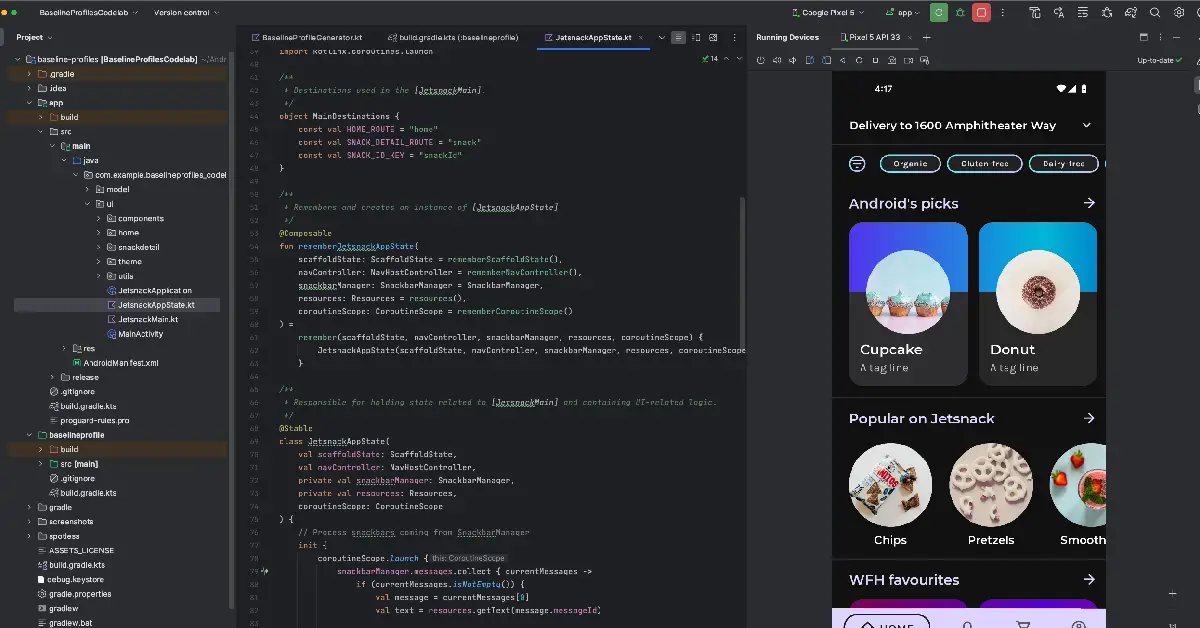
Android Studio is the official Integrated Development Environment (IDE) for Android application development. It provides developers with everything they need to write code, design application interfaces, test mobile apps, identify errors and prepare applications for distribution. Whether you are a beginner learning programming or an experienced developer working on professional projects, Android Studio offers useful features for creating high-quality Android applications.
In this article, we will explore what Android Studio is, what Android Studio software is used for, its important features, benefits, supported programming languages and how beginners can get started with Android app development.
What Is Android Studio Software?
Android Studio is a development environment created by Google for building applications for the Android operating system. It provides a central workspace where developers can write programming code, create application designs, manage project files, test functionality and fix technical issues.
Android Studio is based on IntelliJ IDEA and includes specialised tools designed specifically for Android development. It supports programming languages such as Kotlin, Java and C++, allowing developers to create different types of applications.
The software is suitable for developing applications for Android smartphones, tablets, smart TVs, wearable devices and other supported Android platforms.
One of the biggest advantages of Android Studio software is that developers do not need separate applications for every stage of development. Most essential tasks, including coding, designing, debugging, testing and building an app, can be completed within the same environment.
What Is Android Studio Used For?
Android Studio has several uses in the software development industry. Its primary purpose is to simplify the process of creating Android applications.
1. Developing Android Applications
The main use of Android Studio is building mobile applications for Android devices. Developers can create applications from the beginning or work on existing projects.
It provides tools for writing application logic, connecting different screens, managing data and implementing features.
Developers use Android Studio to build different types of applications, including:
- E-commerce and online shopping applications.
- Banking and financial applications.
- Social networking and communication apps.
- Educational and learning platforms.
- Healthcare and fitness applications.
- Travel and hotel booking applications.
- Entertainment and media applications.
- Business and productivity tools.
Android Studio makes it possible to manage the complete development process within one platform.
2. Designing Application Interfaces
The appearance of a mobile application plays an important role in user experience. Android Studio provides tools that help developers design attractive and functional application interfaces.
Developers can create buttons, menus, forms, navigation bars, images, text fields, cards and other interface components.
Android Studio supports Jetpack Compose, a modern toolkit for building Android user interfaces. It also supports traditional XML-based layouts, which are widely used in existing Android projects.
These tools allow developers to customise colours, fonts, spacing, screen layouts and navigation elements.
Developers can also preview their designs and make adjustments to ensure that applications look suitable across different screen sizes.
3. Testing Applications on Virtual Devices
Testing is an important part of mobile application development. Android Studio includes the Android Emulator, which allows developers to run applications on virtual Android devices directly from their computers.
Instead of purchasing several smartphones for testing, developers can create virtual devices with different configurations.
The emulator can help test:
- Different screen sizes and resolutions.
- Application navigation.
- Login and registration systems.
- Device rotation.
- Notifications and permissions.
- Internet connectivity.
- Application behaviour across Android versions.
This feature is particularly useful for developers who want to test applications during development without depending entirely on physical devices.
4. Finding and Fixing Programming Errors
Another important use of Android Studio is debugging. During development, programmers may encounter coding mistakes, application crashes, unexpected results or performance problems.
Android Studio provides debugging tools that help developers identify the reasons behind these issues.
Developers can use breakpoints, inspect variables, monitor application execution and review system logs.
The Logcat window is particularly useful because it displays messages generated by applications and the Android system. These messages can help developers understand errors and investigate application behaviour.
By identifying problems early, developers can improve application stability and reduce the time required for troubleshooting.
5. Building APK and AAB Files
After completing an application, developers need to prepare it for installation or distribution.
Android Studio includes build tools that allow developers to generate APK files and Android App Bundles.
An APK file can be used to install an application on compatible Android devices. Android App Bundles are commonly used for supported Google Play publishing workflows.
The build system also manages project dependencies, application resources and different build configurations.
This makes Android Studio useful not only for creating applications but also for preparing them for release.
Main Features of Android Studio
Android Studio software includes several features that support different stages of Android development.
Code Editor
The intelligent code editor provides syntax highlighting, code completion, navigation and other programming assistance features. These tools help developers write code more efficiently and understand large projects.
Android Emulator
The Android Emulator allows developers to run and test applications on virtual Android devices. It supports different device configurations and helps identify compatibility problems.
Layout Editor
The Layout Editor helps developers create and preview application interfaces. It supports visual editing of traditional XML layouts.
Gradle Build System
Gradle is used to manage application builds, project dependencies and configurations. It helps developers organise complex projects and create different versions of an application.
Logcat
Logcat displays application and system logs. Developers use it to investigate crashes, monitor application behaviour and identify technical issues.
Debugger
The debugger allows programmers to examine application execution, inspect variables and identify problems in their code.
Android Profiler
Android Profiler provides information about application performance, including CPU usage, memory consumption and network activity. It helps developers investigate resource-related problems.
Jetpack Compose
Jetpack Compose is a modern toolkit for building native Android user interfaces. It uses a declarative approach that allows developers to describe how an interface should appear based on application data and state.
Version Control Integration
Android Studio supports version control workflows, including Git. Developers can track code changes, manage project versions and collaborate with other team members.
Programming Languages Supported by Android Studio
Android Studio supports multiple programming languages that developers can use depending on their project requirements.
Kotlin
Kotlin is one of the preferred languages for modern Android application development. Google officially recommends Kotlin for Android development.
It offers concise syntax, modern programming features and compatibility with Java. Developers can use Kotlin to build application functionality, manage data and work with Android libraries.
For beginners interested in modern Android development, Kotlin is a strong language to learn.
Java
Java has been used in Android development for many years. A large number of existing Android applications and libraries are written in Java.
Android Studio continues to support Java, making it useful for maintaining older projects and developing new applications.
Developers who already understand Java can use their existing programming knowledge when working with Android Studio.
C and C++
Android Studio also supports native development using C and C++ through the Android Native Development Kit (NDK).
These languages are useful for performance-intensive applications, gaming components, multimedia processing and projects that need to reuse existing native code.
How Does Android Studio Work?
The Android app development process generally follows several steps.
Step 1: Create a New Project
Developers open Android Studio and create a new project. They can select a project template, configure the application name and choose the programming language.
Step 2: Write the Application Code
The next step is writing code using Kotlin, Java or supported native languages. Developers create the logic that controls how the application works.
Step 3: Design the User Interface
Developers create application screens, buttons, menus, forms and other visual components using Jetpack Compose or XML layouts.
Step 4: Run the Application
The application can be launched using the Android Emulator or a connected physical Android device. This allows developers to check whether the application works as expected.
Step 5: Test and Debug
Developers test application features, identify errors and improve performance. Android Studio provides debugging and profiling tools to support this process.
Step 6: Build the Final Application
After testing is complete, developers generate an APK or Android App Bundle. The final application can then be distributed through supported channels.
Benefits of Using Android Studio
There are several reasons why Android Studio is widely used by Android developers.
Free Development Environment
Android Studio is available free of charge. Students, individual developers, freelancers, startups and professional development teams can use it without purchasing an Android Studio licence.
Complete Development Tools
The software combines coding, interface design, debugging, testing and build management in one environment. This reduces the need to switch between multiple applications.
Faster Development Process
Features such as code completion, project templates, visual previews and automated build tools help developers save time.
Better Application Testing
The Android Emulator allows applications to be tested across different virtual device configurations. This helps developers identify compatibility and interface problems.
Improved Code Quality
Code inspections, debugging tools and performance monitoring help developers identify potential issues and improve application quality.
Support for Modern Technologies
Android Studio supports Kotlin, Jetpack Compose and other Android development technologies. Developers can use these tools to build modern applications for the Android ecosystem.
Useful for Learning Programming
Beginners can use Android Studio to understand programming concepts and practise building real applications. It provides a practical environment for learning mobile development.
Android Studio System Requirements
Android Studio requires a computer with sufficient hardware resources to run the development environment smoothly.
Some important considerations include:
- Operating System: Compatible versions of Windows, macOS, Linux or supported ChromeOS configurations.
- RAM: 8 GB may be sufficient for basic development, while 16 GB or more is preferable for larger projects and emulator use.
- Storage: An SSD with sufficient free space is recommended for Android Studio, SDK packages, project files and emulator images.
- Processor: A modern processor with supported virtualisation capabilities can improve emulator performance.
- Internet Connection: An internet connection is useful for downloading Android SDK components, updates and project dependencies.
Exact requirements depend on the Android Studio version, operating system, project size and emulator configuration. Developers should check the official Android Developers website for the latest requirements.
Who Should Use Android Studio?
Android Studio is suitable for different types of users.
Students and Beginners: Students can use Android Studio to learn programming, understand mobile application development and create practice projects.
Professional Developers: Experienced programmers can use it to build, maintain, test and optimise Android applications.
Freelancers: Freelancers can develop mobile applications for clients, create custom business tools and manage independent projects.
Businesses: Companies can use Android development to create customer-facing applications, employee platforms and internal business solutions.
Software Development Teams: Development teams can use project management, version control, debugging and build tools to collaborate on applications.
How to Download Android Studio
Android Studio can be downloaded from the official Android Developers website.
Follow these steps:
- Visit the official Android Studio download page.
- Select the installer compatible with your operating system.
- Download the installation file.
- Run the installer and follow the instructions.
- Install the required Android SDK components.
- Open Android Studio and create a new project.
For security and compatibility, it is recommended to download Android Studio software directly from the official source rather than third-party download websites.
Official website: https://developer.android.com/studio
Frequently Asked Questions About Android Studio
Is Android Studio free to use?
Yes. Android Studio is free to download and use for Android application development. Developers can access its main development tools without paying for the software itself.
Can beginners use Android Studio?
Yes. Beginners can use Android Studio to learn mobile application development. Understanding basic programming concepts can make the learning process easier.
Which programming language is best for Android Studio?
Kotlin is a popular choice for modern Android development and is officially recommended by Google. Java is also supported and remains useful for many existing applications.
Can I develop Android apps without a smartphone?
Yes. Android Studio includes an Android Emulator that allows developers to run and test applications on virtual Android devices using a computer.
Can Android Studio be used for game development?
Yes. Android Studio can be used for Android game-related development, particularly when working with native code, C++, libraries and supported game development frameworks.
Can Android Studio create APK files?
Yes. Android Studio can generate APK files for application installation and testing. It can also generate Android App Bundles for supported publishing workflows.
Conclusion
Android Studio software is an essential development tool for creating applications for the Android platform. It provides a complete environment for writing code, designing interfaces, testing applications, debugging errors and preparing software for distribution.
With features such as the Android Emulator, intelligent code editor, Gradle build system, Logcat, Android Profiler and Jetpack Compose, Android Studio supports developers throughout the application development process.
Whether you are a beginner learning programming, a freelancer developing mobile applications or a professional software engineer working on complex projects, Android Studio offers the tools needed to build and maintain Android apps.
Learning Android Studio and Android app development can also help individuals develop valuable technical skills and explore career opportunities in mobile application development and software engineering.